Jet and AI agents
Ask Jet, the built-in agent, to do the busywork in your session, or connect Claude Code, Codex, the Gemini CLI or Claude Desktop to work in it.
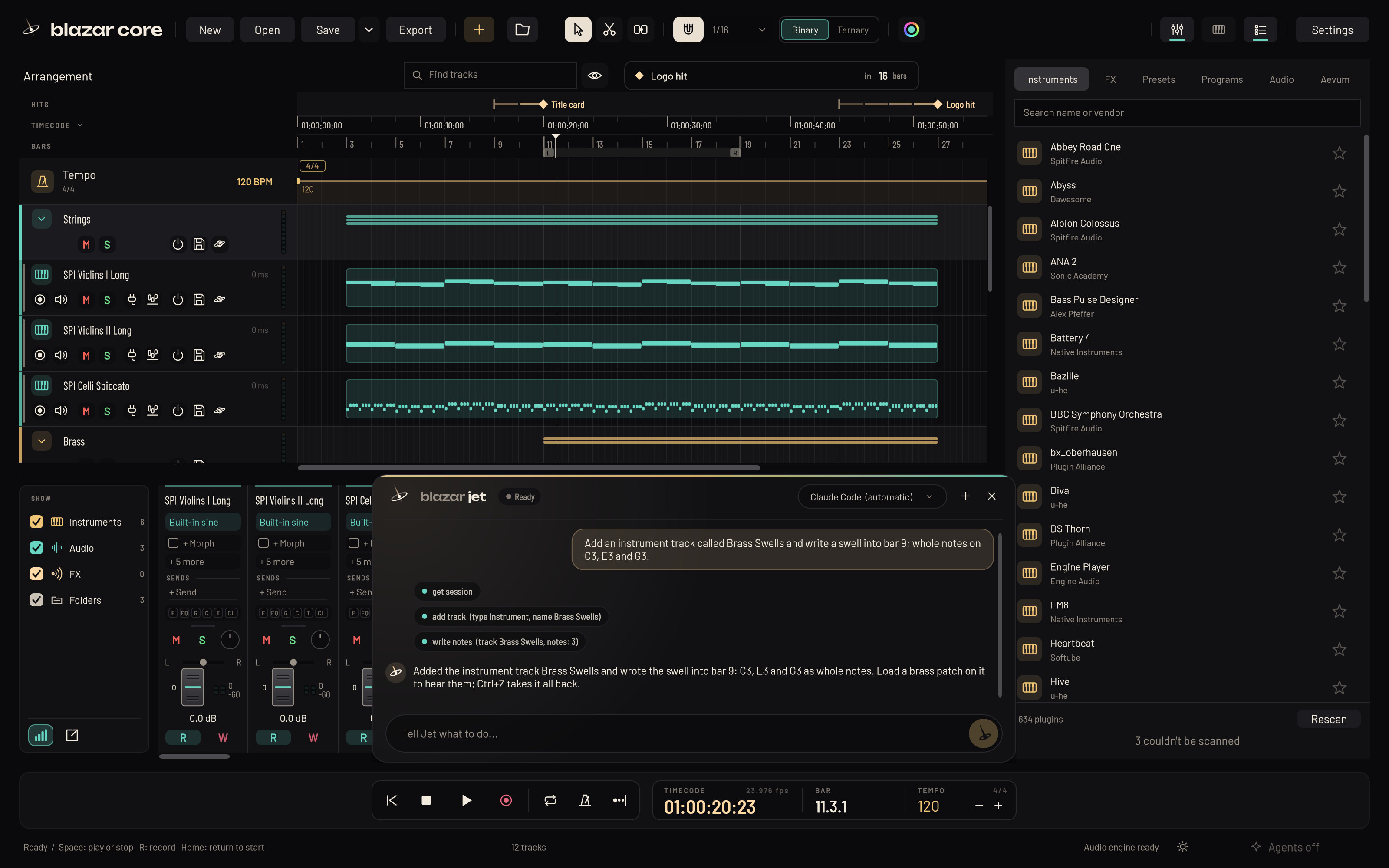
Blazar Core can hand the busywork to an AI agent while you keep writing: setting up tracks, writing a line, quantizing a section, exporting stems. You can use Jet, the agent built into Blazar Core, or connect an agent you already use.
Agents work in the session you have open, while you watch, and every change they make can be undone with Ctrl+Z.
What an agent can do#
An agent can read the whole session (tracks, plugins, containers, notes, tempo changes, time signatures, hit points, the video) and work on it with Blazar Core's own actions:
- add, rename and set up tracks, including sampler tracks;
- write, clear, quantize and align notes, and give them articulations;
- find and load plugins, Kontakt programs, sounds and your track presets;
- move, split, glue and delete clips and containers, and comp takes;
- cut and insert time;
- set the tempo, time signatures and metronome;
- set sends, Morph, mute, solo, levels and the channel strip;
- start, stop and move the transport;
- export audio and save the session.
Ask in plain words, for example:
- "Add an instrument track called Brass Swells and write a swell into bar 9."
- "Quantize the strings to 1/16."
- "Double the cello line an octave up on a new track."
- "Put a limiter on the master."
- "Cut bars 17 to 20."
- "Export the stems."
Positions in Blazar Core are written as bar.beat.sixteenth, starting at 1.1.1, and middle C is C3. Agents know this, and it helps to use the same terms when you ask for something precise.
Jet, the built-in agent#
Press Ctrl+Space anywhere in the main window. A panel rises just above the transport, as wide as it, with a text field; the transport stays in view. When nothing has been asked yet, Jet says hello (by your first name, when it knows it) and gives you an example of what it can do.
- Type what you want done in the session.
- Press Enter to send it. Shift+Enter starts a new line.
- Each action Jet takes shows as a line, followed by its answer.
- The round gold send key turns into a stop key while Jet works. Click it to stop.
- Esc or Ctrl+Space closes the panel. A request under way carries on, and the conversation is still there when you open the panel again.
- The + starts a new conversation.
- Ctrl+Z undoes what Jet changed.
Choose what runs Jet#
Jet runs on Anthropic's, OpenAI's or Google's AI, whichever you choose in the menu at the top of the panel. Each can run in one of two ways:
| Provider | On this computer (CLI) | With your own API key |
|---|---|---|
| Anthropic | Claude Code, on your Claude plan | Anthropic API |
| OpenAI | Codex, on your ChatGPT plan | OpenAI API |
| Gemini CLI, on your Google account | Gemini API |
Automatic picks an agent installed on this computer, else an API key you have set.
Using a CLI. Install and sign in to Claude Code, Codex or the Gemini CLI as usual. The menu shows "not installed" beside any that Blazar Core can't find. Blazar Core runs the CLI in the background with Blazar Core's actions only. Claude Code gets no access to files or commands, and runs without your own Claude Code settings or hooks. Codex's shell is sandboxed read-only.
The Gemini CLI needs a one-time sign-in: open a terminal, run gemini once and choose Sign in with Google, then ask Jet again.
Using an API key. In the same menu, choose Set key... for the provider and paste your key (for Anthropic, from console.anthropic.com). Change key... and Remove key are there too. Blazar Core keeps the key encrypted on your computer and sends it only to that provider. Pick the model for each key in the menu. Usage is billed to your key.
The CLIs reach the session through Blazar Core's agent connection, so Jet turns agent access on when it needs it.
Connect your own agent#
You can also let an agent you already use work in your session from its own window: Claude Code, Codex or the Gemini CLI in a terminal, or Claude Desktop. They connect through Blazar Core's built-in MCP server, a connection on this computer only.
The agents key#
The key at the bottom right of the window shows the state of agent access:
- Agents off: agent access is switched off.
- Connect an agent: ready, with nothing connected yet.
- Agent: Codex, Agent: Claude Code and so on: which agent is connected.
- 2 agents connected (or more).
Click it for its menu. It shows who is connected, opens Jet, has the setup commands, and turns agent access off and on.
Connect Claude Code, Codex or the Gemini CLI#
- Click the agents key and choose Copy Claude Code setup command, Copy Codex setup command or Copy Gemini CLI setup command.
- Paste it into a terminal and run it. You only do this once.
- Ask that agent to work in your Blazar Core session.
Connect Claude Desktop#
- Click the agents key and choose Copy Claude Desktop config.
- In Claude Desktop, open Settings > Developer > Edit Config, and add what you copied to
claude_desktop_config.json. - Restart Claude Desktop, then ask it to work in your session.
Turn agent access off and on#
Choose Turn off agent access (or Turn on agent access) in the agents key's menu, or use the Agents switch in Settings > General.
Jet in the demo#
In the demo version you can try Jet like everything else (see The demo version).
Something unclear or missing? Tell us, or report a bug.