Exporting audio
Render the mixdown and any stems in one pass, over the whole song or between the locators, as WAV or FLAC, with send effects and ring-out.
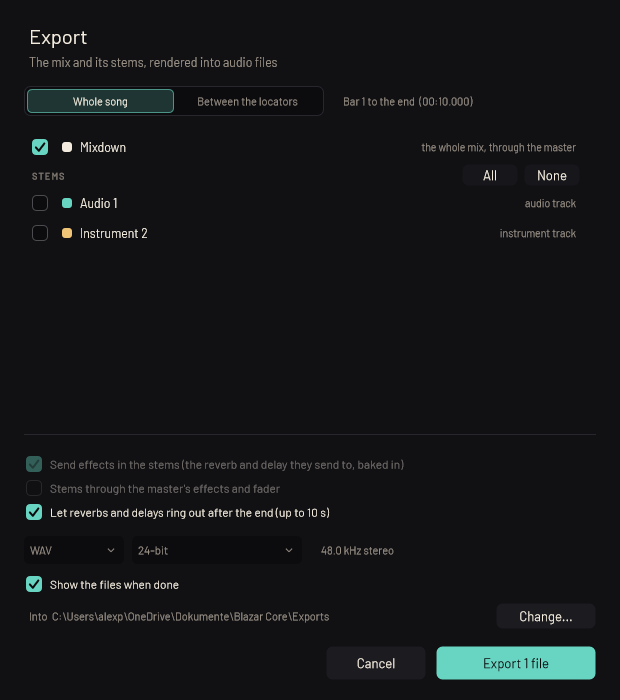
The Export window renders your mix and its stems into audio files in one pass: the mixdown for the director, stems for the dub stage, or both.
The demo version doesn't export (see The demo version).
Open the Export window#
Click Export in the top bar, press Ctrl+Alt+E, or choose Export audio... in the menu beside Save.
Export the mix and stems#
- Choose the range. Whole song exports from bar 1 to the end of the song; Between the locators exports the range between the left and right locators.
- Tick what to export. The list offers:
- Mixdown: the whole mix, through the master.
- Each folder, with the number of tracks in it.
- Each FX channel: what the channels send to it.
- Each instrument track and audio track, with the folder it sits in.
- Choose the options (below).
- Choose the format: WAV or FLAC (lossless, about half the size), and the bit depth: 24-bit for sharing and mastering, 16-bit for CD, or 32-bit float, which keeps anything over 0 dB.
- Check the folder. Files go into the project's
Mixdownfolder unless you choose another with Change.... - Click Export. The button says how many files it will make.
A progress window shows each file as it renders; you can cancel it.
File names#
Each file is named after the session and what it holds, for example My Cue - Mixdown.wav or My Cue - Strings.wav. When you export several files at once, they go into a new folder named after the session with the date and time, so one export never mixes with another.
Export options#
Blazar Core remembers these choices for the next export.
- Send effects in the stems (on at first): each stem carries the reverb and delay it sends to, baked in, so it sounds as it does in the mix. Turn it off for dry stems.
- Stems through the master's effects and fader (off at first): runs each stem through the master's inserts and fader, as the mixdown is.
- Let reverbs and delays ring out after the end (on at first): the export goes on for up to 10 seconds after the range so tails aren't cut off. The song itself lets go at the end of the range: no note starts after it and none is left held, so only the tails ring on. The ring-out ends as soon as the sound has been silent for half a second.
- Show the files when done (on at first): opens the folder when the export has finished.
What an export includes#
- Latency compensation applies, so dry tracks, folder buses and sends line up in the files exactly as in playback.
- Gain trim and the rest of the mixer are included, just as you hear them.
Other ways to render audio#
- Bounce to audio: hold Q over a MIDI container and choose Bounce to audio. It is rendered offline through its instrument and effects onto a new audio track right under it.
- Glue: gluing audio clips that aren't parts of one recording renders them, as they sound, into a new recording (see Glue).
- An agent can export for you: "Export the stems" (see Agents).
Something unclear or missing? Tell us, or report a bug.