Touch, focus, themes and performance
Play and run Blazar Core from a touch screen, focus on one track with Event horizon, switch to the Daylight theme, see where your time went with Aevum, and keep big templates running smoothly.
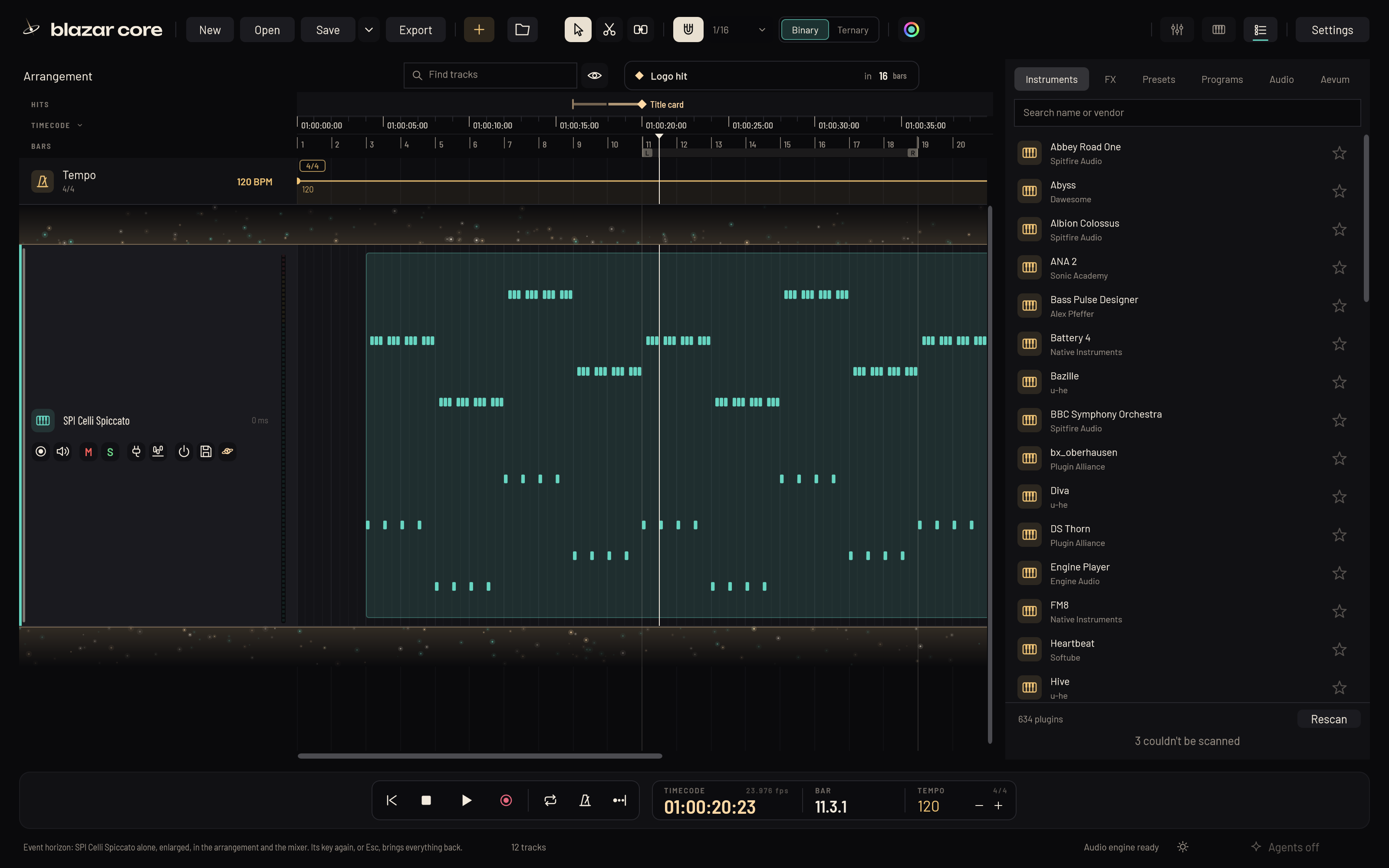
This chapter gathers the features that shape how Blazar Core feels to work in: the touch surface, Event horizon, the Daylight theme, Aevum's session time, and what Blazar Core does to keep a big template playing.
Play with your fingers: the touch surface#
Click the Keyboard key in the top bar to open the performance keyboard in its own window. On a computer with a touch screen it opens filling that screen, as a control surface for your fingers. Elsewhere it is an ordinary window that you can move and size, and it remembers where you put it. Opening, sizing or closing it never changes the arrangement's layout, and the Keyboard key stays available whether the mixer is shown or not.
The touch surface holds:
- The transport with the position, along the top.
- Every keyboard command as a pad, in groups, all in view. The piano roll's commands work while the piano roll is open.
- The played track's articulations, once its key switches are learned (see Key switches).
- A pitch wheel that springs back and a mod wheel that stays where you leave it.
- A keyboard for the selected track, with as many octaves as you choose (OCTAVES). Play with several fingers, slide between keys, and touch near a key's foot for a louder note. For Kontakt instruments, the keys show Kontakt's key colours.
SHOW at the right end switches between the whole surface and the keyboard alone (the articulations, the wheels and the keys).
Touching the surface never takes the computer keyboard away from the window you are working in, so your shortcuts keep working.
Focus on one track with Event horizon#
The Event horizon key on a track's header (a black hole with its disc, after the power and save-preset keys) leaves that track alone on screen:
- In the arrangement, only that track shows, enlarged, with specks of light drifting and twinkling above and below it. Its notes spread over the track's own range of pitches, each as tall as there is room for, so a few notes read as notes rather than dashes in a wide lane.
- In the mixer, only its channel shows, zoomed, with its fader and modules.
A track in a folder shows alone too; a folder shows with the tracks in it. If nothing the track holds is in view, the view moves to where it begins. A track with nothing on it yet says so in the status line.
Every control stays as it is, and nothing in the mix changes: Event horizon only changes what you see. Click the key again, or press Esc, and all tracks come back at the height they had.
Switch between Dark and Daylight#
Blazar Core has two looks: Dark, cinema-black with warm ink, and Daylight, warm paper and ink.
Click the sun key at the bottom right of the window (left of the agents key) to switch the whole app to Daylight at once. The moon key switches back to Dark. You can also choose the look in Settings > General. Blazar Core keeps your choice for the next launch.
In Daylight, track colours, timecode and hit points take deeper shades so they read on the light background. Blazar Core's own effect windows follow the look too.
See where your time went with Aevum#
Blazar Core keeps track of the time you spend on each session, by itself, from what you actually do. There is nothing to start or stop.
What counts#
Phases. Your time is sorted into what you were doing:
- Composing: the piano roll, notes, playing a MIDI keyboard.
- Arranging: containers, clips, tracks, tempo, hit points.
- Recording.
- Sound selection: the browser, loading instruments and presets.
- Sound design: an instrument's window in front, the Morph.
- Mixing: the mixer, inserts, sends, the channel strip, automation, effect windows.
- Mastering: the master strip and meters, export.
- Listening: playing back with your hands off.
Every edit names its phase. Otherwise the part of the app under your hands decides, or playback (listening).
Presence. Time counts while Blazar Core is in front and your hands are on it: keys, mouse or a MIDI keyboard used within the last two minutes (ten while you listen back), and always while recording. Half a minute away still counts as what you were doing; longer is a break; after five minutes the sitting is over.
Where it went. Each second also goes to the channel you work on, the bar of the song (the playhead while playing, else what you edited), and the plugin whose window is in front.
The Aevum tab#
The Aevum tab in the browser greets you for the time of day, by your first name ("Good evening, Alex"; "Still at it, Alex?" after midnight). It then shows the session's total, what is being counted now (this sitting, today's focus, deep flow and time), the phases and the channels.
The fold rail down the tab's left edge unfolds Aevum over the arrangement, with pages:
- Overview, with the days worked.
- Days: each day's sittings on a lane of the hours.
- Channels.
- Song: where in the song the time went, per bar and per hit point.
- Plugins.
Click the rail again, or press F5 to F9 for another browser tab, to fold it back.
Where the time is kept#
The time is kept in Time.json in the project's folder, shared by all its versions. A session saved outside a project keeps it in <name> Time.json beside the session. It is written every half minute, whether or not you save. The time of an untitled session goes into its project when you first save it.
Performance#
Blazar Core keeps its hands off the processor while nothing happens, so your computer keeps its power for the instruments.
Every core plays#
The audio engine renders the tracks on all of the processor's cores at once (one track per core at a time: its instrument, inserts, morpher and channel strip), then mixes them in order. A session sounds exactly as it would on one core, only with room to spare. A session can hold up to 1024 tracks.
Slipstream: playback that rides out CPU spikes#
While the song plays, Slipstream renders the tracks that are only playing back a few milliseconds ahead of the audio device, on CPU threads of their own. When a plugin spikes, that time ahead absorbs the spike, instead of the spike reaching your speakers as a dropout.
- Tracks you play, record or monitor, and any track whose plugin window is open, stay in real time with priority, so a knob you turn is heard at once.
- Faders, pan, mute, solo, sends and volume automation respond at once on every track.
- How far ahead it renders adapts by itself to the load. Edits to a pre-rendered track during playback take effect after that time, about 20 ms.
Slipstream is on by default. You can switch it off in Settings > Audio and MIDI; then every track is processed in real time. The audio load's tooltip in the status line shows the current pre-render time.
Watch the audio load#
The status line shows how much of each audio block's time the engine takes, on average and at its highest in the last second. It turns amber from 70% and red near 100%, where clicks start. To find out how many instruments your machine can take, add them while the song plays and watch the peak. Settings > Audio and MIDI shows the load and the cores too.
The screen draws only what changed#
Standing still, Blazar Core draws nothing (a meter moves only when a level moves). While playing, only the thin strip the playhead crosses, the meters and the readouts are redrawn; while you drag clips or locators, only the lanes and rulers. Video is decoded on the graphics card. This leaves the processor for your instruments, even on older machines.
Free memory from instruments you aren't using#
For big templates, Cryosleep offers to put tracks you haven't touched in ten minutes to sleep, and the power key switches a track off completely. Both free the memory and CPU the instrument was using, without losing anything.
Something unclear or missing? Tell us, or report a bug.