Stage
Place independent audio channels in one stereo concert hall, edit the orchestral seating, and keep that space in your stems.
Stage places your orchestra in a built-in stereo concert hall. One editable seating plan covers strings, woodwinds, brass, percussion, harp, piano, and choir. Each assigned channel keeps its own sound and hall tail.
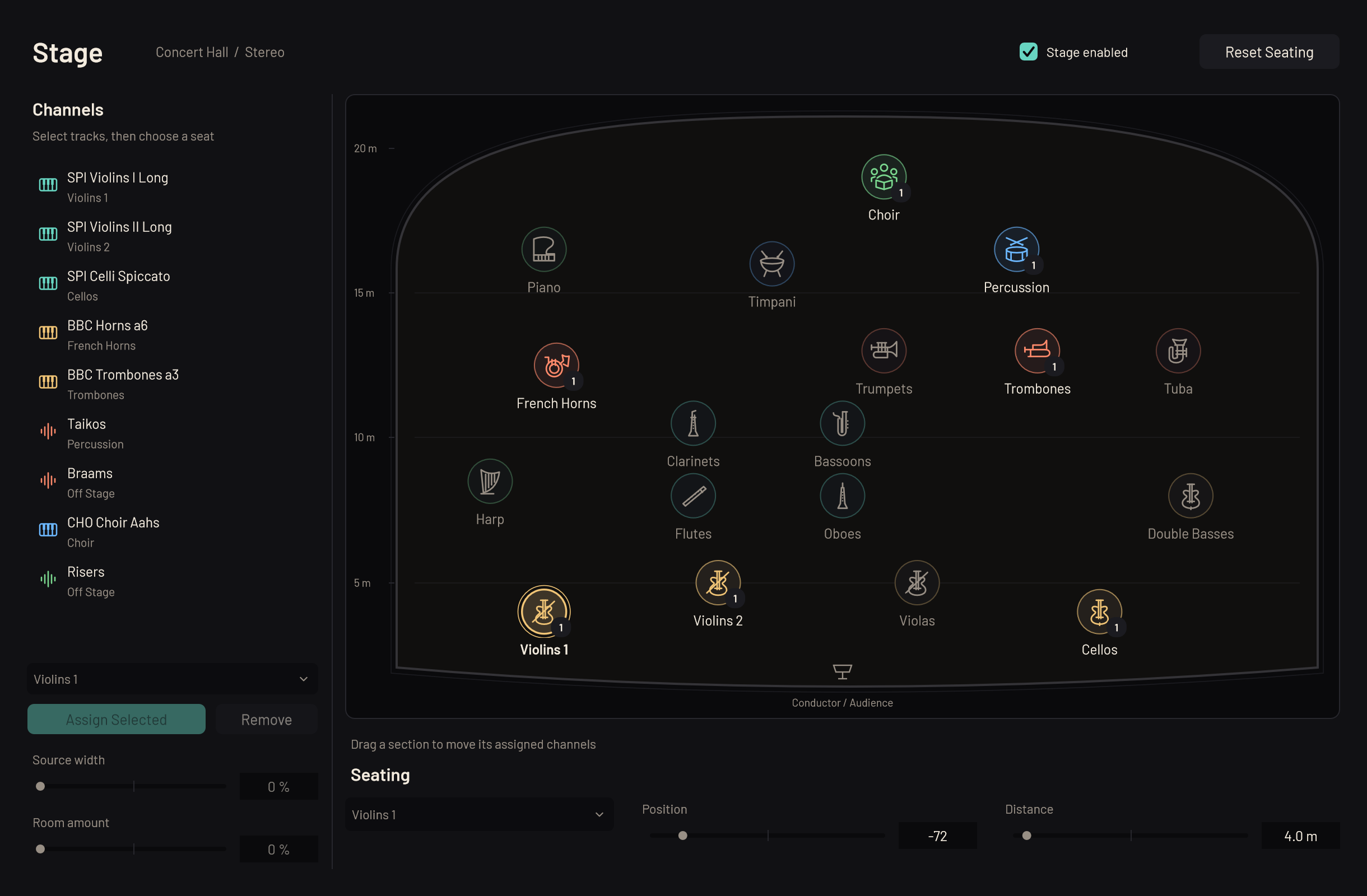
Assign channels to seats#
Click Stage above the arrangement. Select one or more channels in the list, choose a section below it, and click Assign Selected. FX channels don't take a seat: the channels that send to them do. Use Ctrl-click (Cmd-click on Mac) to select several channels. Click Remove to take the selected channels off the stage.
You can also choose Stage seat in the inspector's Routing section. The button beside it opens Stage.
Assign each stereo return from a shared instrument separately. For example, Kontakt's 1 / 2 can use Violins 1, 3 / 4 can use Oboes, and 5 / 6 can use French Horns. MIDI channels and instrument destinations stay as you set them. Several articulation tracks can share one seat while keeping their own faders and effects.
Edit the seating#
The conductor and audience are at the bottom of the hall plan. Each section has a circular marker, an instrument symbol, and its name. A small number on the circle shows how many channels use that seat; the outer arc shows their peak level during playback. Hover over a marker for its channel count and distance.
Drag a circle or its name to move the section across the stage and nearer or farther away. The distance guides show meters from the listening position. The curved room outline helps you read the plan; the distance control sets the sound.
Select a section on the plan, or choose it below Seating, then use Position (from L 100 through Center to R 100) and Distance for precise changes. After clicking a section, the arrow keys move it. Moving a section moves every channel assigned to it.
Reset Seating restores the starting positions. It keeps channel assignments. Stage enabled switches the whole stage on or off. Assignments, positions, and channel settings are saved in the session and can be undone.
Adjust the sound#
Select channels in the left list to adjust Source width and Room amount. With several channels selected, a change applies to all of them; the controls initially show the first selected channel's values.
Distance changes the direct sound's level and brightness, how soon the first reflections follow it, and its balance against the early reflections and the hall tail. As in a hall, the walls answer a section near you after a clear gap, and one at the back almost at once. Every section's direct sound stays on time, so the back of the orchestra never falls behind the grid or the picture. The concert hall has one fixed character; Room amount sets how much of it each channel contributes. Stage creates an algorithmic hall: the room outline is a seating guide, and its walls do not determine the reflections.
Stage follows the channel's inserts and precedes its fader, pan, and sends. The fader controls the positioned sound and its hall tail together. Pan remains available as a final stereo balance. Cryosleep leaves Stage editable.
Export spatial stems#
In Export, leave Include Stage positioning and hall sound on. Each stem includes its own positioning, distance, and hall contribution. It does not contain another channel's hall tail. Leave Let reverbs and delays ring out after the end on for complete endings; Stage exports keep the full 10-second ring-out so the files have matching lengths. Exports between locators include up to eight seconds of preceding hall history.
Turn Include Stage positioning and hall sound off to export without Stage. The Send effects in the stems option controls your mixer sends separately.
For stems intended to add back to the mix, export separate channels at the same range, leave Stems through the Master's effects and fader off, and keep the same folder processing and routing. Stage is additive; shared compression, limiting, or other nonlinear processing after channels combine can change the sum. A folder stem includes its member channels, so use either the folder stem or its individual members when rebuilding the mix.
Something unclear or missing? Tell us, or report a bug.