The piano roll
Open MIDI containers in the piano roll, write and edit notes across several tracks, and quantize, humanize or align them to the click.
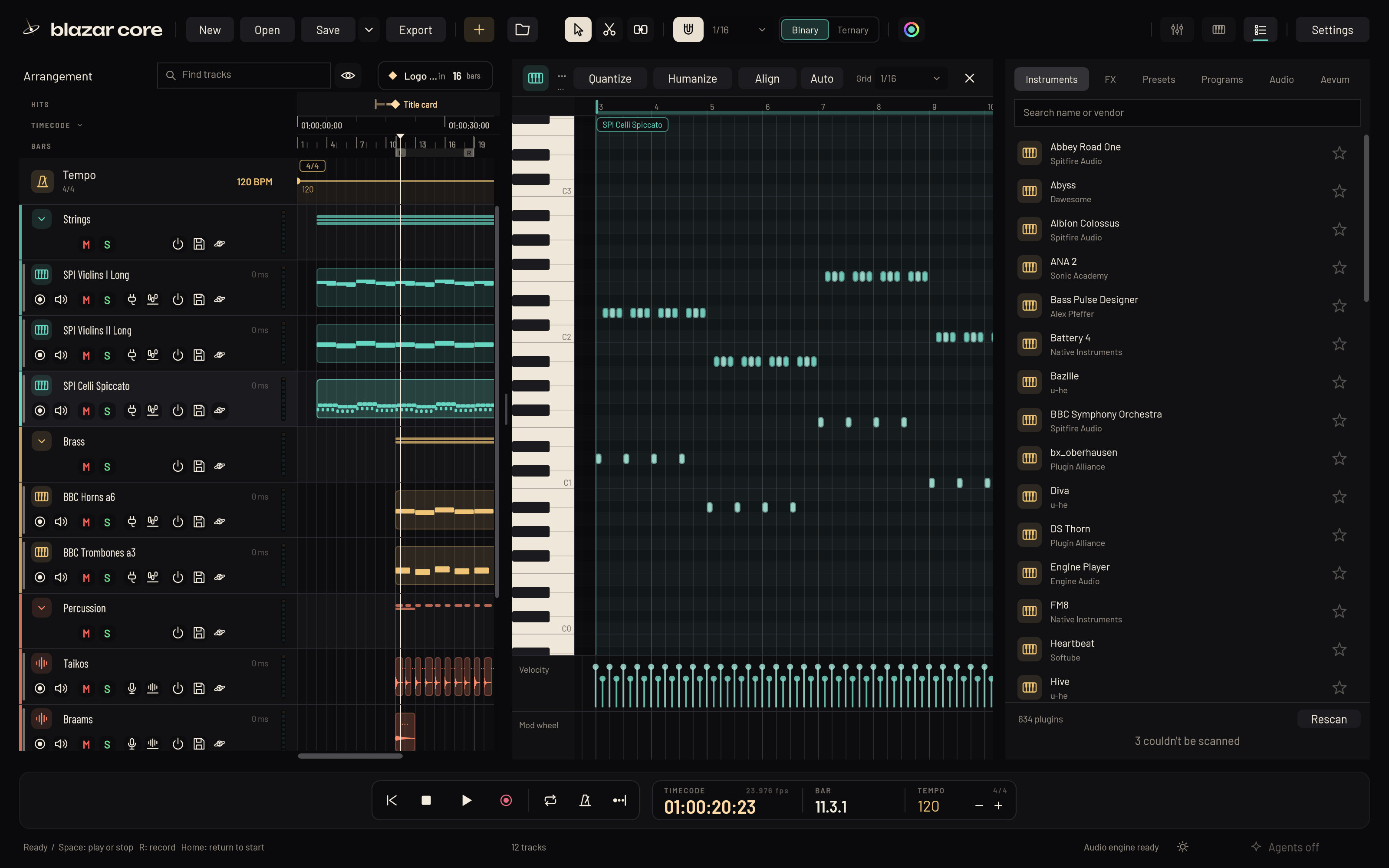
The piano roll opens docked under the arrangement. It is built for orchestral writing: open the horns, the trombones and the strings together, see every line in its track's colour, and write into whichever one you choose.
Open and close the piano roll#
- Select a MIDI container and press Enter, or double-click it.
- To open several containers, Ctrl+click or Shift+click them first (on any tracks), or catch them with a rectangle, then press Enter.
- Press Enter again to close the piano roll. Esc closes it too; if notes are selected, the first Esc clears the selection.
A single click on a container only selects it. Quick Ctrl or Shift clicks are always picks, never a double-click.
Only the containers you picked#
The piano roll shows the notes of the containers you opened it on, not the rest of their tracks. With the piano roll open:
- Ctrl+click or Shift+click another container in the arrangement to add it to the roll straight away.
- Ctrl+click or Shift+click a picked container again to take its notes out of the roll. Taking out the last one closes the roll.
The track you are writing into stays the same while you add or remove containers.
The part stays in view#
The piano roll keeps the containers you opened in the middle of the view, across all their tracks, zoomed out to fit if needed (as far as sixteenth notes stay readable). Time outside the part is dimmed.
Playing on past the part, or clicking near the roll's edge, doesn't scroll it away. A part longer than the roll pages along with the playhead inside it, never past its ends. You can still scroll and zoom by hand; pressing play brings the part back to the middle.
Work on several tracks at once#
Catch several instrument tracks' containers with a rectangle and press Enter: they open together, every note in its track's colour, so a horn line reads against a trombone chord.
- The track names in the piano roll's header choose where new notes go. The filled name is the track you write into. Tab and Shift+Tab move to the next or previous track.
- The focus track's mod wheel lane and containers show.
- Selecting, moving, resizing, velocity, copying, Delete, quantize, humanize and L work across all the tracks. One edit is one undo step, whatever tracks it touches.
So you can write the horn line while the trombone chords, the percussion and the string ostinatos show around it.
Zoom and size#
- W and E zoom out and in; Ctrl+wheel zooms around the pointer.
- Shift+W and Shift+E (or Alt+wheel) make the key rows shorter or taller.
- Shift+F fits the container to the roll: its whole length across and all its notes' pitches top to bottom. It fits the container of the selected notes, else the one most in view.
- Drag the divider between the arrangement and the piano roll to give either more room. Double-click it for half and half. Blazar Core remembers the size.
Move the playhead in the piano roll#
Click empty space among the notes, or the piano roll's ruler, to move the playhead there, just as in the arrangement. Dragging from empty space draws a selection rectangle instead.
While the magnet is on, the playhead lands on the grid.
Write and edit notes#
- Draw a note: hold Alt and click. Drag to set its length.
- Select notes: click a note, drag a rectangle from empty space, or press Ctrl+A for every note.
- Move notes: drag them, or use the arrow keys. Up and Down move the selected notes a semitone (with Shift, an octave); Left and Right move them one grid step earlier or later.
- Copy notes: Alt+drag a note (or the selected notes). You can also press Alt once the note is already moving: it returns to its place while a copy follows. Let go of Alt before you drop and it moves instead.
- Velocity: Ctrl+Shift+drag a note up for louder or down for softer.
- Legato: press L and the selected notes last until the next note (or the container's end).
- Delete: press Delete.
- Split a note: with the Split tool (key 2), click a note (or one of the selected notes) to cut it there.
- Join notes: with the Glue tool (key 3), click a note to join it with the next note of the same pitch.
Resize containers from the piano roll#
Each container shows as a band along the piano roll's bar ruler, with a grip at each end. Drag a grip, or the container's edge line over empty space, to make the container longer or shorter.
Quantize#
Press Shift+Q, or click Quantize in the piano roll, to put notes on the grid. It works on the selected notes, or on all notes when none are selected. In the arrangement, Shift+Q quantizes the selected containers.
Set the grid with Ctrl+1 to Ctrl+4 (1/4 to 1/32) and T for triplets (see The grid).
Humanize#
Humanize, beside Quantize, loosens the timing of a part that sounds too mechanical. It shifts note starts at random, earlier or later, by up to 5, 10, 20 or 30 ms.
- It works on the selected notes, or on all notes when none are selected.
- Note lengths, velocities and controllers stay as they are, and notes never move before the start of the song.
- Press H to repeat the last amount (10 ms unless you chose another).
- Each use is one undo step, and redo gives back exactly the same result.
On a narrow editor the button reads H.
Align played MIDI to the click#
Align, beside Humanize, reads a part you played to the click the way a musician would, and puts it on the grid.
When you play live, you sit a little ahead of or behind the click, and that lean moves as you go: slowly over a long take (early at the start, late an hour in) and quickly within a phrase (rushing into a downbeat, then settling behind). Plain quantize moves each note to the nearest grid line, so a note that drifted closer to the wrong line lands in the wrong place.
Align follows your lean from note to note and works out which grid line each note was meant for, as quarters, eighths, sixteenths or triplets, whichever explains your playing best. The editor's grid setting doesn't matter. Then:
- Notes go onto the lines they were meant for, even when they were closer to another one.
- Chords land flat on their line.
- A note played off the grid on purpose, such as a grace note or a flam, keeps its timing and moves with the note it leads into.
- The sustain pedal and controllers move with the notes around them.
- A take that is already exactly on the grid stays as it is.
Align works on the selected notes, or on all notes (with their pedal and controllers) when none are selected. Each track shown in the piano roll is read as a take of its own. It is one undo step.
The status line says what Align found, for example: "Aligned 40 notes to the click: they sat 60 ms early at bar 6 and 36 ms late by bar 7. 40 notes went onto the 1/8 grid."
On a narrow editor the button reads A.
Align every take automatically#
Click Auto beside Align to turn on Auto align. When recording stops, the notes each take added go onto the click the same way, without a click on Align. Notes that were there before stay as they are. It is its own undo step after the take, so Ctrl+Z gives you the playing as it was. The setting is also in Settings > General, and Blazar Core remembers it.
Other ways to align#
- Hold Q over the piano roll or over selected containers and choose Align. Each container is read as a take of its own.
- Right-click a container and choose Align.
- Ask an agent to align a part (see Agents).
Articulations in the piano roll#
Once Blazar Core has learned an instrument's key switches (see Learn an instrument's key switches), the piano roll shows them as buttons above the notes, named after the articulations: Legato, Spiccato, Tremolo, Pizzicato.
- Drag a button onto the articulation lane below the notes. The notes from there on play with that articulation until the next change.
- Select notes and click a button to give them that articulation.
- Right-click a button to rename it.
Blazar Core sends the key switches during playback, so each note plays back as written.
For Kontakt instruments, the piano roll's keys also show the colours Kontakt gives them, key switches in red and the playing range in blue (see Key colours).
Something unclear or missing? Tell us, or report a bug.