Recording
Arm and monitor tracks, record audio and MIDI with a count-in, loop-record and comp takes, and let Blazar Core take care of latency.
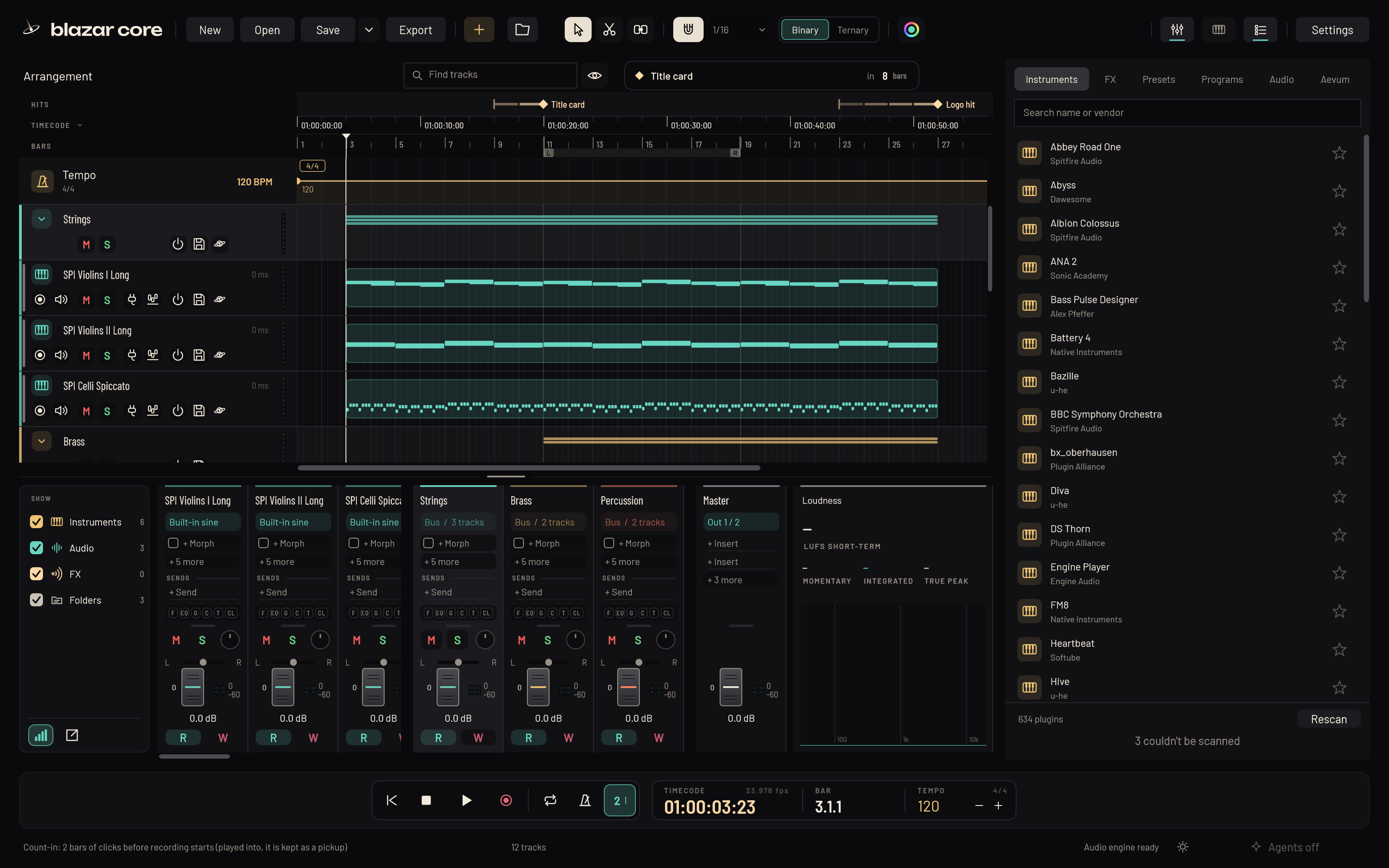
Before you record, set up your audio interface and MIDI inputs in Settings > Audio and MIDI (see Getting started).
The track controls for recording#
Each track header has four round icon keys:
- Arm (the circle) decides which tracks record. Arm as many tracks as you like; they all record together.
- Listen (the speaker with waves) turns on live monitoring: you hear what comes in through the track and its effects.
- Mute (the crossed-out speaker) and Solo (the headphones).
On a new audio track, monitoring is off; on a new instrument track, it is on. Use headphones when you monitor a microphone, so the speakers don't feed back into it.
Mute and solo never stop an armed track from recording. A disabled track cannot record.
Record audio#
- Add an audio track with Audio track in the top bar.
- Choose its input with the track's input button: for example input 1, input 2, or the stereo pair 1/2.
- Click Arm on the track. Click Listen if you want to hear yourself through Blazar Core.
- Click Record in the transport or press R (or Numpad *).
- Click Stop, or press Space, when you are done.
Audio is recorded as 24-bit stereo WAV. A mono input is written to both channels. In a saved project, takes land in the project's Media folder; before the first save, they go to Documents/Blazar Core/Recordings (see Projects).
When you record over existing audio, the new clip goes on top and plays. The clip underneath is kept, so you can move the new one away to bring it back.
Record MIDI#
- Add an instrument track and load an instrument (see Load an instrument).
- Select the track. Your MIDI keyboard plays the selected instrument track.
- Click Arm on the track.
- Press R to record, and Space to stop.
Blazar Core records note on and off, velocity, controllers, pitch bend and other short channel messages, with sample-accurate timing. SysEx is not recorded. When you stop, the take closes any notes and sustain pedal still held. Each MIDI take is also written as a standard .mid file.
Which tracks your keyboard plays#
Your keyboard or controller plays the selected instrument track, plus any tracks with Listen on, and the armed tracks while you record. The piano roll's preview notes play only the track it shows.
MIDI channels#
Each instrument hears its track's MIDI channel (channel 1 unless you change it), whatever channel your keyboard sends on. So players that listen on channel 1, such as SINE Player and most Kontakt instruments, sound without being switched to omni.
To change it, right-click the instrument slot and choose MIDI channel. Choose As played for a multi-channel instrument that sorts notes by channel itself.
Use the metronome and a count-in#
Press C, or click the metronome key in the transport, to turn the click on or off.
The count-in key sits beside the metronome. Click it, or press Shift+C, to cycle through Off, 1 bar and 2 bars. Blazar Core remembers your choice.
With a count-in set, recording from a standstill starts with that many bars of clicks, in the tempo and meter where the recording starts. Each bar's first beat is higher. The count-in clicks whether the metronome is on or not.
- The song waits at the playhead during the count-in, and the bar display in the transport counts down in red (-2.1 ... -1.4).
- Notes you play into the count-in are kept, before the take, as a pickup.
- Recording that you start while the song is already playing has no count-in.
- If you press Stop during the count-in, nothing is recorded.
The metronome follows the tempo track and the time signatures.
Loop record and comp takes#
- Set the locators around the section (drag across the bar ruler, or select a container and press P).
- Turn the loop on (the loop button, or /).
- Arm the audio track and record. Each pass becomes a take.
- Stop when you have enough takes.
The track's Takes chip opens a lane for each take under the track. To build a comp:
- Double-click in the take lanes to add a separator line across all of them. Drag a line to move it.
- In each section between the lines, click the take you want to hear there.
The best parts of each take play as one comp. Right-click the take lanes for more: use one take everywhere, delete a take, or flatten the comp.
Put played MIDI on the click#
Blazar Core's Align reads the timing of a part you played to the click the way a musician would, and puts it on the grid line you meant (see Align).
Turn on Auto align to align every MIDI take as recording stops. It is the Auto key beside Align in the piano roll, and in Settings > General. Only the notes the take added are moved, and the alignment is its own undo step after the take, so Ctrl+Z gives you the playing as it was.
Latency: recordings land where you played them#
You don't need to set any recording offsets.
- Recorded audio is moved back by your interface's round-trip latency.
- Recorded MIDI lands where you heard it. Blazar Core places it earlier by the interface's output latency plus one audio buffer, which is how late your playing reaches it after the click you played to.
- In a loop, a note you heard at the loop's end stays at the end.
- Plugin latency is compensated throughout the mix (see Latency compensation). The one exception: live input that you monitor through a plugin with latency is still late by that plugin's latency.
While you record#
Note edits such as Humanize are paused while you record. Switching a track on or off needs recording to be stopped first.
Volume automation written during a recording is part of the take (see Automation).
Something unclear or missing? Tell us, or report a bug.